


Tayasui Sketches
3.71.66K Reviews
App Specs
- Version
- 1.5.41
- Updated On
- License
- Free
- Downloads
- 10,000,000+
- Developer
- Tayasui Sketches
- Categories
- Art & Design
- Platform
- Android, iOS
Screenshots

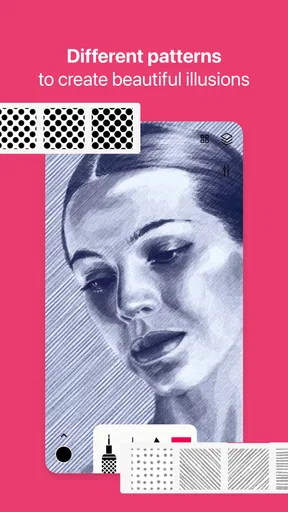
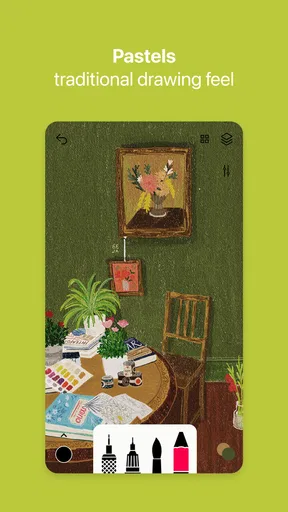
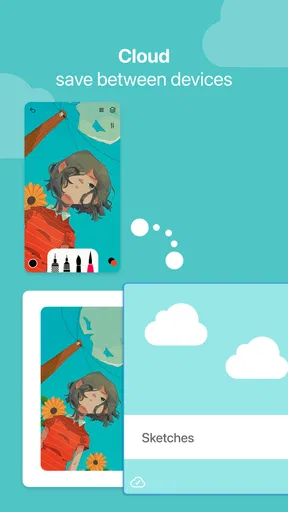
 Analysis by AppCompare
I judge a drawing app by how quickly I can get from an idea to a mark on the screen, and whether the tools encourage me to keep drawing rather than fiddling with settings. Tayasui Sketches is aimed at that enjoyable, hands-on part of making art: quick pencil studies, loose paint experiments, and more considered illustrations. It is a free art and design app from Tayasui Sketches, rated for Everyone, with a 4.0 average from around 75,000 ratings and over 5 million installs. That reach makes it easy to consider, but the more useful question is whether its way of working suits yours.
Choose by the kind of work you actually do
Before settling on any drawing app, I’d think about the work I want to make and what I expect to do with it afterward. A person who wants to doodle during a break has different needs from someone building polished artwork for a client or organizing a long comic project. Sketches makes the most sense when the act of drawing is the priority: choosing a tool, testing a line, and developing an image without turning every step into a technical setup.
That focus can be a real advantage on a phone or tablet, where a complicated interface may feel cramped. It can also be a constraint if you need a highly structured production process, extensive project management, or fine control over every part of a finished image. I’d decide based on the kinds of files and edits I need to make regularly, not just on how appealing a brush looks in a sample.
First Impressions
From the moment I opened Tayasui Sketches, I was greeted with a clean and intuitive interface that just screams creativity. The app doesn’t overwhelm you with too many buttons or options right off the bat, which is a big plus for beginners. Instead, it offers a serene workspace where you can focus on your art without distractions.
Where its drawing tools feel at home
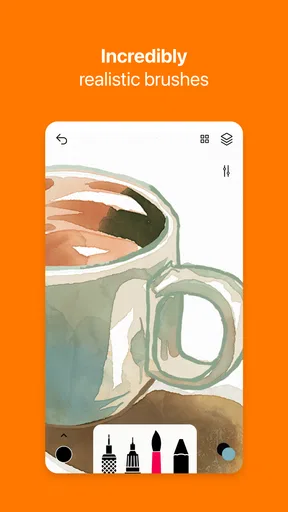
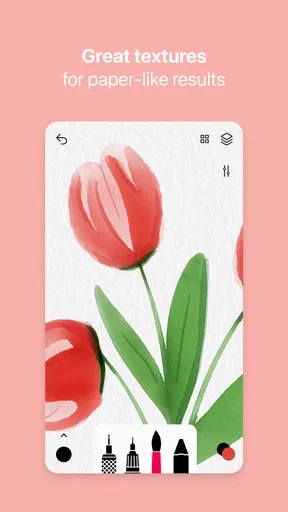
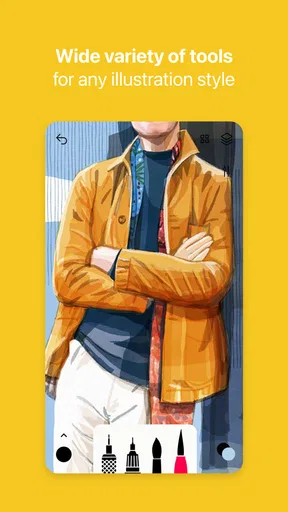
The app packs a solid collection of tools that mimic real life art supplies. You get everything from pencils and pens to watercolor brushes that blend beautifully. Each tool is responsive, and the pressure sensitivity is spot on, especially if you're using a stylus. The watercolor brush deserves a special shoutout; it’s delightfully realistic, allowing colors to mix and blend naturally. It’s like painting on real paper, but without the mess!
One of my favorite features is the ability to tweak brush settings. You can adjust the size, opacity, and even customize your own brushes. It’s perfect for artists who love to experiment or need specific textures for their work.
Layers and More Layers
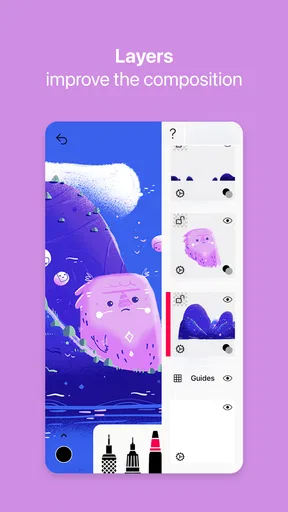
For those who love working with layers, you’re in for a treat. Tayasui Sketches offers a robust layer system that lets you add, delete, and rearrange layers with ease. You can even adjust the opacity of each layer, which is essential for complex compositions. It’s like having Photoshop-style layers but with a much more user-friendly approach.
Worth Reading Before You Choose

Flipboard Shows What News Apps Must Do Beyond the Feed

Switching to Android Auto Means Rethinking Your Driving Routine

Google Calendar Makes a Crowded Week Easier to Manage

Ludo King Makes the Most of the Minutes Between Plans

Baby Panda World Brings Quick Play to Modern Phones, but Its Game Library Feels Busy

ESPN’s Live Game View Makes Following Close Games Easier
Additionally, the app supports importing images, allowing you to trace or incorporate photos into your sketches. This feature is a lifesaver for those of us who need a little reference or inspiration to get started.
A useful reference-to-sketch routine
Importing a reference image is most helpful when I treat it as a guide rather than as a shortcut to a finished drawing. I can rough in the main shapes on one layer, keep the reference available while I check proportions, then use another layer to develop the lines I want to keep. Lowering a layer’s opacity can make an underdrawing less visually dominant while I work over it. That simple separation makes revisions easier: I can adjust or clear exploratory marks without disturbing the more confident drawing.
For an everyday example, I might take a photo of a plant on a walk, bring it into the canvas later, and use it to study the leaf shapes before making a looser watercolor-style interpretation. The value is not only tracing; it is having a visual prompt close at hand when memory is vague. If I only want to capture an idea quickly, though, importing a reference and setting up layers may be unnecessary. A blank canvas and a few confident strokes are often the faster choice.
Getting more from a small brush setup
Custom brush settings are useful, but I wouldn’t start by building a large collection of brushes. I’d first keep a small set for distinct jobs: one for rough construction, one for clean line work, and one for color or texture. Changing size and opacity within that set is often enough to explore a look without interrupting the drawing to search through options. It also helps me notice what a tool actually contributes, rather than mistaking a long tool list for a better result.
Pressure-sensitive drawing is particularly valuable when the stylus and device support the kind of input I want; it can make a single stroke vary naturally instead of requiring repeated size adjustments. On a phone, or when drawing with a finger, I’d expect a different, less precise feel. For casual doodles that may be perfectly fine, but people who rely on delicate line variation should try their actual device and preferred input method before committing to a detailed workflow.
Sharing and Exporting
Once you’ve created your masterpiece, sharing it with the world is a breeze. Tayasui Sketches lets you export your artwork in multiple formats, including PNG and PSD, which is fantastic for further editing in other applications. You can also directly share your creations on social media or email them to friends, right from the app.
The app also offers a community feature where you can share your work with other Tayasui users. It’s a great way to get feedback and find inspiration from fellow artists.
Think about the next step before you export
Different exports suit different intentions. A finished image meant to be viewed or shared is a natural fit for a common image format, while a layered file can be more useful if I plan to continue editing in compatible software. I’d decide which matters before I leave the canvas, especially when an illustration contains separate sketch, line, and color stages. That small habit avoids discovering later that I wanted to keep editing the structure but only saved a flattened version for sharing.
The community option can also serve a different purpose from a private reference folder: it gives artists a place to show work and encounter other people’s drawings. I’d use it when I’m looking for encouragement or fresh visual ideas, not as a substitute for a carefully organized portfolio or a guaranteed source of critique. If my goal is simply to send a friend a quick sketch, direct sharing is the more straightforward route.
Where alternatives may fit better
Compared with a basic note-taking or doodling app, Sketches is more appealing when I want the marks themselves to feel like familiar art materials and want layers or adjustable brushes. Compared with a full-featured illustration or image-editing program, its calmer, drawing-first approach may be easier to settle into, but it may not be the best home for a workflow built around extensive technical controls or repeated production tasks. Those are differences in emphasis, not a reason to assume one kind of app is universally better.
If I were planning a complex piece that depends on highly specific editing tools, dependable handoff between several stages, or a tightly managed library of projects, I would compare more specialized alternatives before moving everything into Sketches. If I mainly want to draw freely and occasionally send an image elsewhere for finishing, its export options give me a practical middle ground. The right choice depends on whether I value a relaxed drawing space more than a broad production toolkit.
Why You Might Love It
If you’re someone who loves simplicity paired with powerful tools, then this app is a dream come true. The minimalistic design keeps you focused on your art, while the advanced tools provide everything you need to bring your ideas to life. It’s perfect for both quick sketches and detailed illustrations.
Moreover, the app doesn’t just cater to digital artists. Traditional artists will also appreciate the natural feel of the tools, making the transition from paper to screen seamless. It’s like having all your art supplies condensed into a single app.
Who should skip it, and what to weigh
I’d recommend it most to beginners who want a welcoming place to practice, traditional artists curious about digital brushes, and experienced sketchers who value a direct route from rough idea to image. It also suits people who like to explore color and texture without immediately building a complex workflow. If I were teaching myself to draw, I’d use the uncluttered starting point to build a steady habit, then add layers and brush adjustments only when a specific drawing called for them.
I’d be more cautious if I needed a specialized environment for animation, technical diagrams, or a large production pipeline. Those jobs can depend on tools and file-handling routines beyond what I want from a sketchbook-style app. It may also be a poor fit if I dislike working on a touchscreen or need precise input but don’t have a comfortable stylus setup. A pleasant interface cannot compensate for an input method that makes every line feel like a struggle.
The app is free to download, with optional in-app purchases ranging from about three dollars to around fifty dollars per item. I’d begin by exploring the free experience and only consider a purchase when I know what capability I need; there’s little value in paying for tools I won’t use. The current version is 1.5.41, and it requires Android 8.0 or later. Since purchases can differ in value, I’d check the specific item in the app rather than treating the highest possible price as the cost of getting started.
Switching without disrupting your routine
If I’m moving from paper, I wouldn’t try to recreate every physical habit on screen in one sitting. I’d start with a small daily exercise—thumbnail sketches, a quick object study, or a few color tests—and learn which brush feels comfortable for that purpose. A short practice page also helps reveal whether I prefer drawing with a finger or stylus, and whether I naturally use layers or prefer one continuous sketch.
If I’m moving from another digital art app, I’d first test the parts of my workflow that are hardest to replace: how I use references, how I separate line and color, and what file I need at the end. A small trial illustration is safer than beginning a major project before I know whether the export and editing handoff suit me. Keeping the first project modest makes the comparison fair and lowers the cost of changing direction if the app does not match my habits.
Final Thoughts
Overall, Tayasui Sketches is a delightful app that strikes a perfect balance between ease of use and powerful features. Whether you’re a seasoned artist or just starting out, it offers something for everyone. So, if you’re looking for an app that lets your creativity flow without breaking the bank, give Tayasui Sketches a try. You might just find your next favorite sketching tool.
Grab your stylus, unleash your creativity, and see where this app takes you. Happy sketching!
Pros
- User-friendly interface for beginners.
- Wide variety of brushes available.
- High-quality export options.
- Layers feature enhances creativity.
- Cross-platform sync with cloud.
Cons
- Limited free version features.
- Occasional lag on older devices.
- Ads can be intrusive at times.
- Brush customization is limited.
- No text tool available.
FAQs for Tayasui Sketches
What features does Tayasui Sketches offer for digital artists?
Tayasui Sketches provides a comprehensive set of tools for digital artists, including a variety of brushes, pens, and pencils that mimic real-life drawing instruments. It also offers layers, blending modes, and an intuitive user interface that makes it easy for artists to create detailed and vibrant artwork. Additionally, the app supports pressure sensitivity for styluses, enhancing the drawing experience.
Is Tayasui Sketches suitable for beginners in digital art?
Yes, Tayasui Sketches is well-suited for beginners due to its user-friendly interface and straightforward tools. The app offers tutorials and a learning curve that allows new users to get accustomed to digital drawing. Beginners can start with basic tools and gradually explore more advanced features as they become more comfortable with digital art.
Does Tayasui Sketches support cloud synchronization?
Tayasui Sketches supports cloud synchronization, allowing users to save their artwork to cloud services like iCloud and Dropbox. This feature ensures that your sketches are backed up and can be accessed across multiple devices, providing flexibility and security for your creative projects.
Are there any in-app purchases in Tayasui Sketches?
While Tayasui Sketches offers a range of free features, there are in-app purchases available that unlock additional advanced tools and functionalities. These include premium brushes and layers, which can enhance the drawing experience for users looking to expand their creative capabilities within the app.
What platforms is Tayasui Sketches available on, and is it free to download?
Tayasui Sketches is available on both Android and iOS platforms. The app can be downloaded for free, offering a substantial range of features at no cost. However, additional features and tools are available through in-app purchases for those seeking an enhanced artistic experience.


